Guide
Set up your account
Sign up so you land in your company, and get your first API key.
Every Hermes Health account belongs to a company. Your company owns your projects, patients, record requests and invoices, and everyone on your team who signs in to that company sees the same data. Before you make an API call, make sure your account landed in the right company.
Sign up with your work email
Create your account at /register. The email address you sign up
with decides which company you join:
- Your company has registered your email domain with Hermes Health. You join
your company as soon as you finish signing up, with the role your company
chose for new members. If your company registered
acme.com, signing up asjane@acme.computs you in Acme’s company. - Your email domain isn’t registered with any company. You get a Community account instead.
Sign up with your work email, even if you usually use a personal address for
tools like this. Hermes Health never registers a public email domain such as
gmail.com, outlook.com or icloud.com to a company, because anyone can
create an address there. A personal address always creates a Community
account.
Community accounts
A Community account is a self-serve workspace of your own. It isn’t part of any customer company, and nobody else can see it. It includes the self-serve tools, such as looking up facilities, and your own API keys and settings.
A Community account can’t create projects, add patients or request records:
those routes return 403 Forbidden. If every project or patient call you make
returns 403, a Community account is the most likely reason.
To move into your company, contact your Hermes Health representative or support@hermeshealth.com. Tell them the email you signed up with and the company you belong to, and Hermes Health moves your account and sets your role. You keep the same sign-in, and your API keys keep working, because keys belong to you rather than to the company.
Inviting teammates
Anyone on your team with permission to invite users can send an invitation from the web app. The invitation is an email with a link to sign up, and it doesn’t choose a company for the person you invite: they join a company the same way you did, by the email domain they sign up with. Invite teammates at their work address. Someone invited at a personal address gets a Community account of their own, not a seat in your company.
Check where you landed
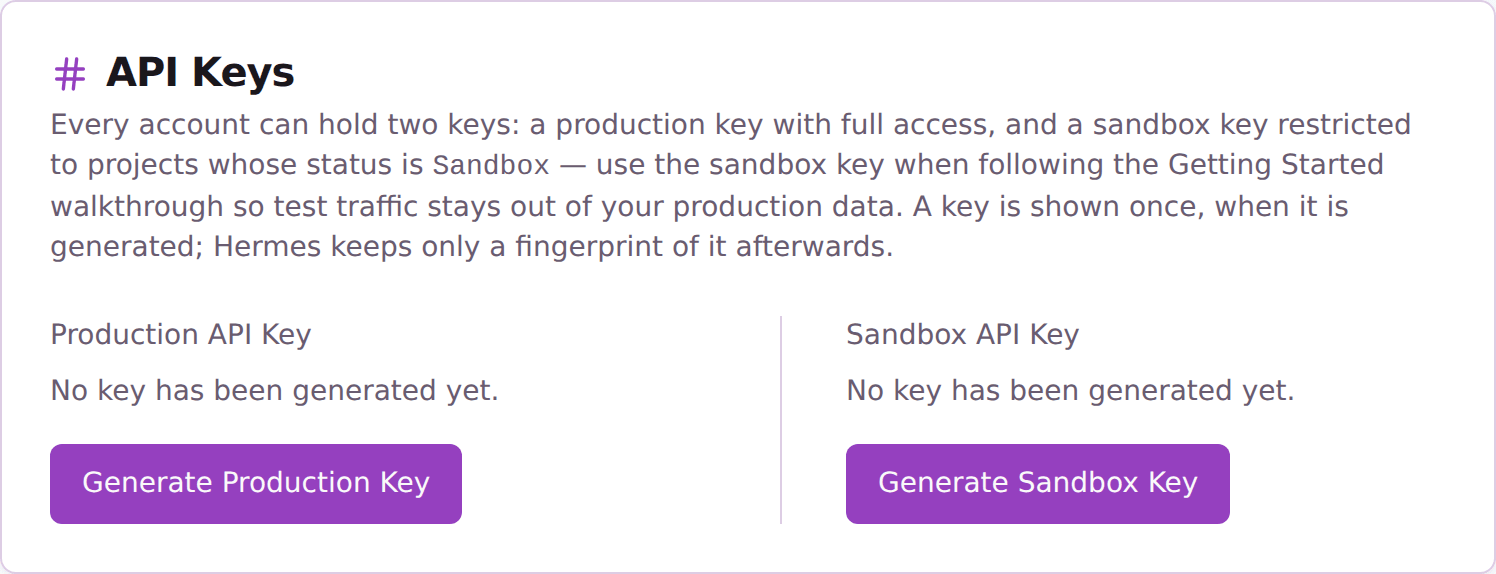
A new account starts with no API keys. Open API Settings and generate one. The key is shown only once, when you generate it, so copy it into your secret store straight away. If you lose it, generate a new one; the old key stops working.
Then confirm your company and permissions before you build anything:
curl https://api.hermeshealth.ai/v0/user-profile \
  -H "Authorization: Bearer YOUR_API_KEY"
import requests

response = requests.get(
    "https://api.hermeshealth.ai/v0/user-profile",
    headers={"Authorization": "Bearer YOUR_API_KEY"},
)
response.raise_for_status()
print(response.json())
const response = await fetch("https://api.hermeshealth.ai/v0/user-profile", {
    method: "GET",
    headers: {
        Authorization: "Bearer YOUR_API_KEY",
    },
});
if (!response.ok) throw new Error(`Request failed: ${response.status}`);
const data = await response.json();
The response carries companyId, companyName and permissions, the list of
what your account is allowed to do. Pass companyId on every
/v0/companies/{companyId}/... route. If companyName isn’t your company, or
permissions is missing CreateProjects and CreatePatients, contact Hermes
Health before going further: everything you create belongs to the company your
account is in when you create it.